There are two ways to get started with Airtop. You can either start an agent from scratch or use one of our pre-built agent templates.

What Should I Automate?

Airtop is best at automating repetitive tasks that require interacting with the web. If you have a task that needs to be completed daily, weekly, or monthly, and it involves interacting with the web, including navigating to websites, logging in to services, or filling out web forms, then Airtop is the right choice. Some good use-cases for Airtop are:
  • Filling out web forms
  • Collecting data from web pages
  • Lead generation
  • Monitoring social media
  • Engaging with social media posts
  • Really anything you can think of…
Any web-based task that needs to be completed on a consistent basis is a good candidate for automation with Airtop.

Use a Template

Templates are the fastest way to start automating the web with Airtop. Airtop templates are pre-built, customizable automations built by Airtop and our community. These templates have been tested and approved by Airtop. Remixing a template takes substantially less time than building a custom agent. They also require fewer credits to build with than starting from scratch, as much of the automation legwork has already been completed. To remix a template, go to Templates, select a template that fits your needs, and click “Try Agent.” Then simply tell the Assistant how you’d like to change the template. If the template is already very similar to what you need, then you will just need to connect the necessary integrations and adjust any desired parameters. The Assistant will guide you through this process step-by-step.
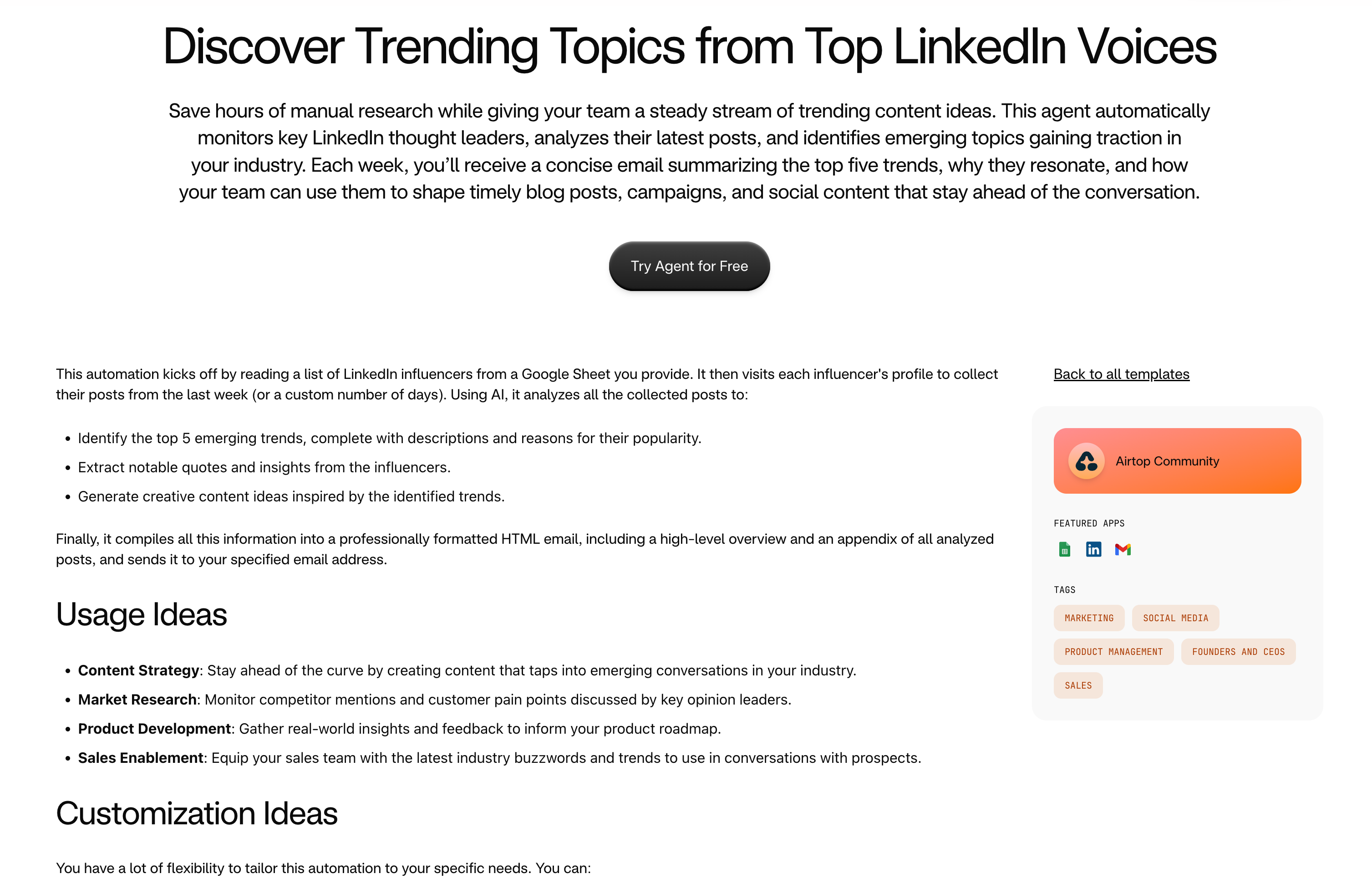
Airtop templates list

Browse ready-made templates


Airtop template details

Select a template and click 'Try Agent'

If you need to radically change a template to fit your needs – for instance, if the template has little to do with your intended use-case – then it will be faster to start from scratch.

Start from Scratch

If there are no templates that fit your automation needs, then you can build an agent from scratch. Navigate to: Agents Sign in or create an account if needed. Creating a New Agent Click ”+ Create New Agent” in the top righthand corner of the Airtop Portal. Then describe what you want to automate. Be clear and concise with your prompt.
Airtop new agent

Write a prompt to describe what you want to automate

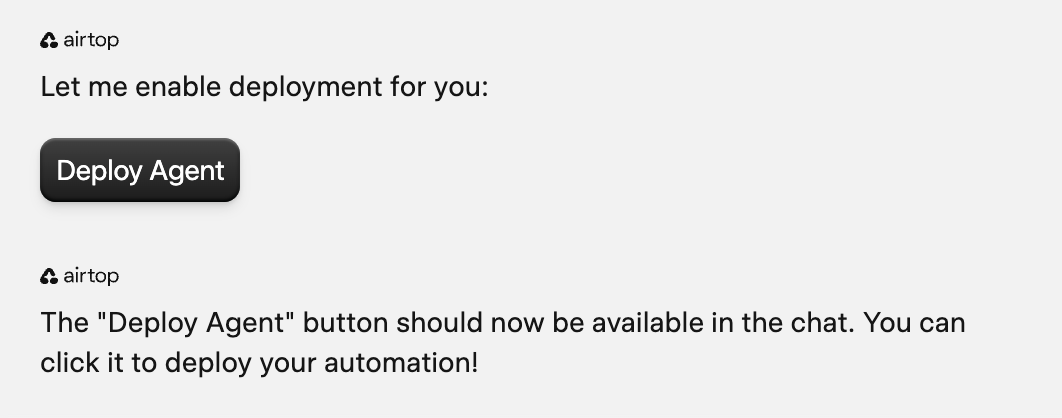
Start with a simple prompt, then work with the Assistant to expand and fine-tune your automation. Working with the Assistant The Assistant will work with you to connect any integrations you’ll need (like Slack), specify which Slack channel or channels to monitor, and what kind of summary to create. There is no need to specify all of this information in the initial prompt. If you see that the Assistant is doing something you don’t want it to do, you can correct it at any time in the chat box. Don’t hesitate to interrupt it! Agent sessions are saved automatically. If you need to leave the Assistant, or your session times out, you can return to the same project and pick up where you left off. The Assistant will write the automation code for you, test it, and fix any problems that it encounters along the way. The Assistant will ping you if it needs approval or clarification. Make sure to turn on desktop notifications! Deploying and Scheduling an Agent Once you are satisfied with your agent, it’s time to deploy! Click “Deploy” in the chat or top-right corner. This will finalize your agent and make it available for scheduling and triggering.
Airtop deploy agent

Click 'Deploy' to finalize your agent

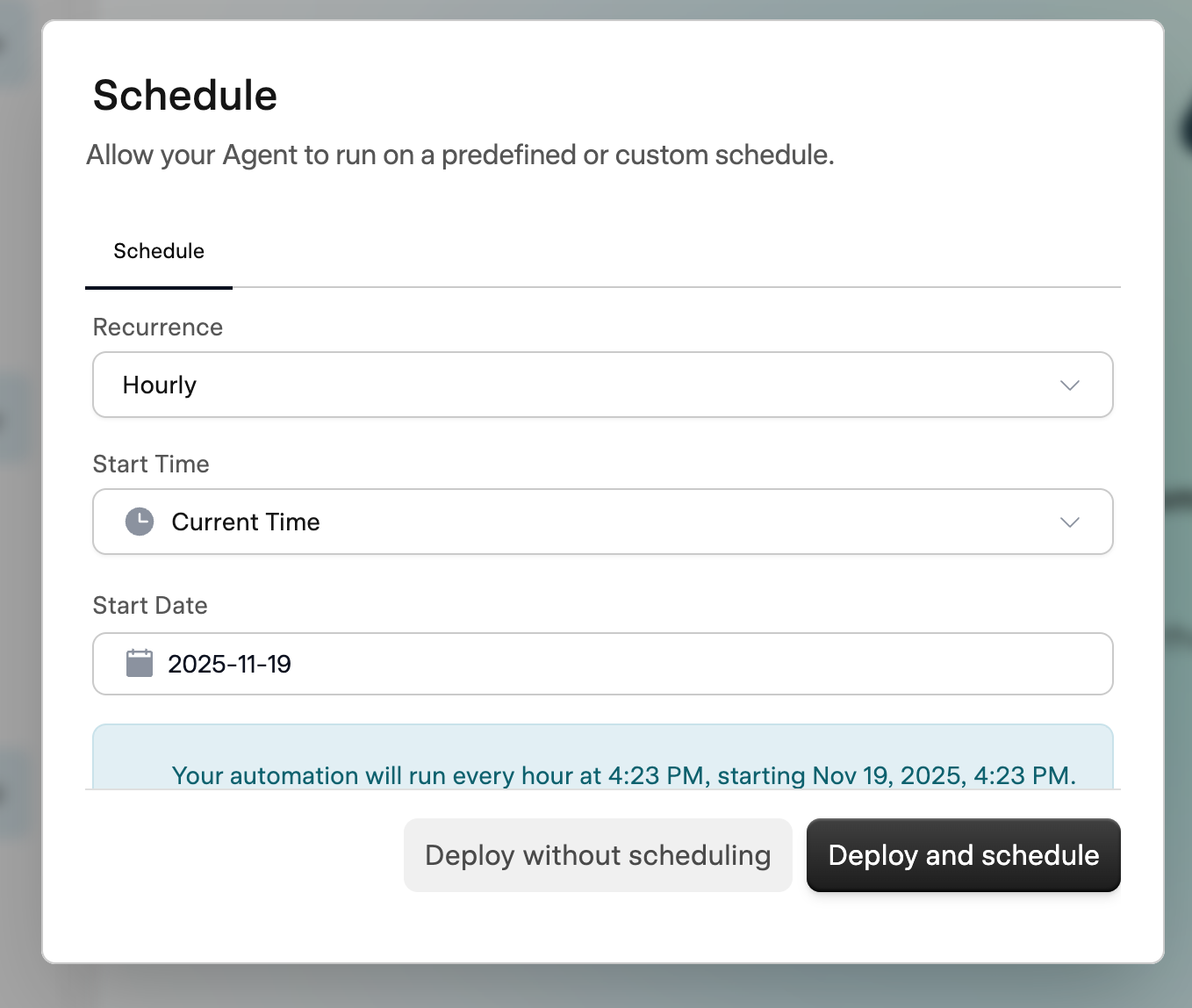
On the Deploy popup, you can configure the agent’s schedule and trigger options. You can either schedule the agent to run automatically, or leave it without a schedule to trigger manually or via a webhook or external service.
Airtop deploy modal

Configure the agent's schedule and trigger options

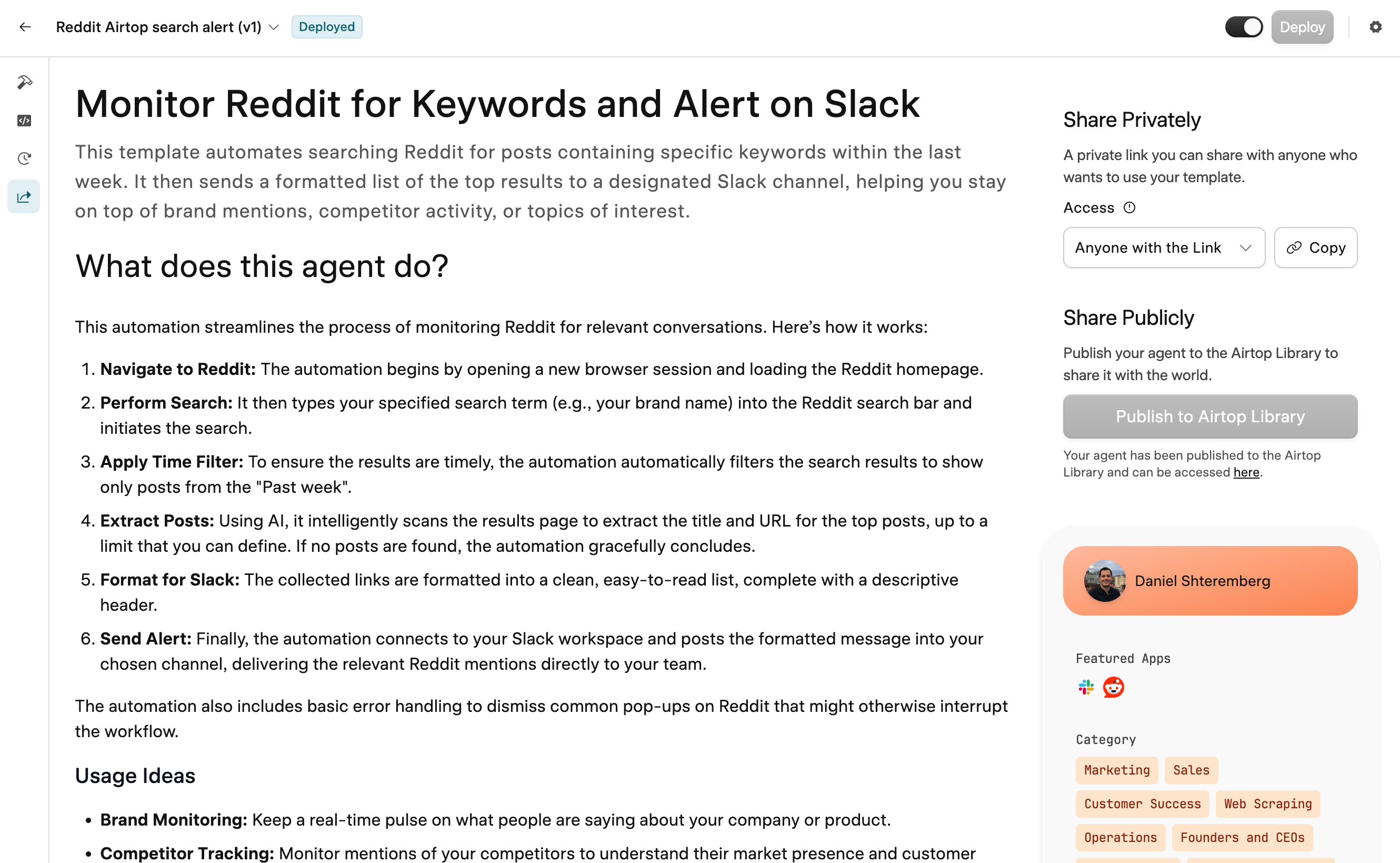
Sharing an Agent as a Template If you want to share your agent with others, or submit your agent to the Airtop community, click “Share.” This will automatically anonymize any sensitive data in your Agent (API keys, login information, etc) and create a template description page. You can edit the template description page or leave it as-is, and submit your template to the Airtop team for review, or send a private link to anyone.
Airtop share button

Click 'Share' to create a template

We appreciate your contribution to the community!